
Ever found a theme you really liked but there were just a few small blemishes that kept gnawing at you?
It happened to me with the Monokai theme that comes with VSCode. But fortunately, VSCode allows you to modify almost every single aspect of a theme.
There are two types of customization available in VSCode.
- workbench.colorCustomizations
- editor.tokenColorCustomizations
workbench.colorCustomizations
This allows you to customize the VSCode interface. You can customize the sidebars, various backgrounds, status bar, mini-map and much more. I mainly used it to tune the colors to increase contrast.
Here’s how to access and customize it:
- Open the user settings by hitting
ctrl + shift + Pand searching forPreferences: Open Settings (JSON). - Create the
workbench.colorCustomizationJSON property if it’s not already created. - Create a nested property with your theme’s name in
[]such as[Monokai]. - Create an object.
- Add and modify the properties you want.
Check out the full list of options here.
Here’s how mine looks with the customizations for the Monokai theme.
"workbench.colorCustomizations": { "[Monokai]": { "sideBar.foreground": "#c7c7c7", "sideBar.background": "#0b1014", "sideBarSectionHeader.background": "#0b1014", "editor.background": "#000000", "breadcrumb.background": "#0b1014", "statusBar.background": "#0b1014", "statusBar.foreground": "#626262", "minimap.background": "#0b1014", "titleBar.activeBackground": "#0b1014", "editorGroupHeader.tabsBackground": "#0b1014", "activityBar.background": "#0b1014", "tab.inactiveBackground": "#0b1014", "tab.activeBackground": "#0b1014", "tab.activeBorder": "#ffd866", }}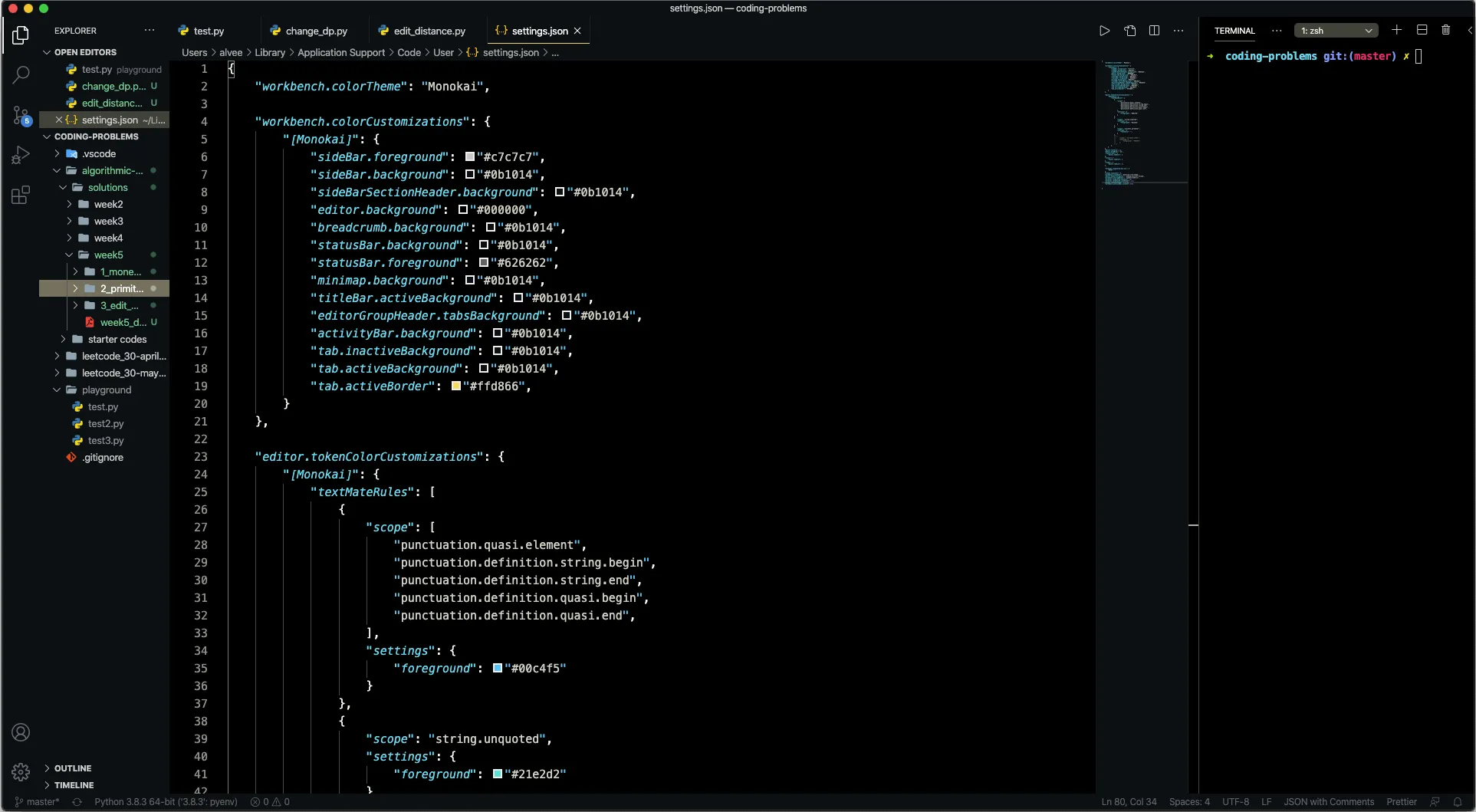
editor.tokenColorCustomizations
This lets you modify the syntax highlighting of the theme.
Here are the steps:
- Open the user settings by hitting
ctrl + shift + Pand searching forPreferences: Open Settings (JSON). - Create the
editor.tokenColorCustomizationsJSON property if it’s not already created. - Create a nested property with your theme’s name in
[]such as[Monokai]. - Create another nested property called
textMateRulesand initialize to an empty array. - Create objects with
scopeandsettingskeys to modify the defined scopes.
How to Find Out TextMate Scope in VSCode
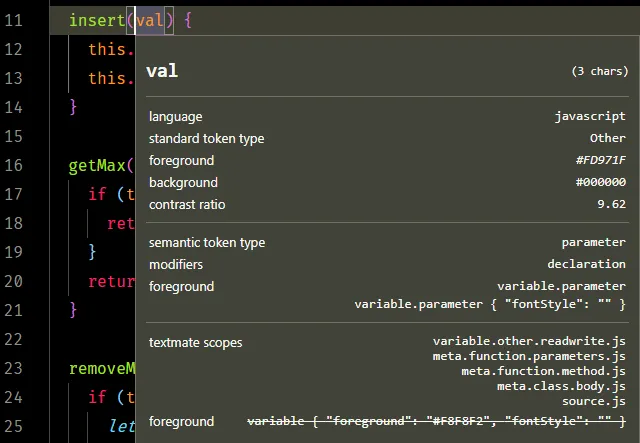
If you are not familiar with TextMate scopes here’s how to figure them out in VSCode:
- Hit
ctrl + shift + P. - Search for
Developer: Inspect Editor Tokens and Scopesand hit enter.
This will open a window and show you all the details about that scope.
Here’s my code:
"editor.tokenColorCustomizations": { "[Monokai]": { "textMateRules": [ { "scope": [ "punctuation.quasi.element", "punctuation.definition.string.begin", "punctuation.definition.string.end", "punctuation.definition.quasi.begin", "punctuation.definition.quasi.end", ], "settings": { "foreground": "#00c4f5" } }, { "scope": "string.unquoted", "settings": { "foreground": "#21e2d2" } }, { "scope": "variable.parameter", "settings": { "fontStyle": "", } } ], }}